How to Scan a QR Code on the Same Device: Screenshots, Email and PDFs
Read a QR code already on your phone or computer. Use a saved image, extract it from an email or PDF, and recover when image recognition fails.
Like it ? share it
If a QR code is already on your screen, save it or take a screenshot. You can read that image on the same phone or computer.
One Reddit user was sending a phone screenshot to a computer just to scan it. Another needed to read a QR code inside an emailed flyer on a work computer. A saved image gives you a shorter route in both situations.
Choose the route that matches where your code is:
| Where the QR code is | Start here |
|---|---|
| A saved image on a supported Samsung Galaxy | Open it in Gallery and try the QR action |
| A screenshot in Google Photos | Select the image and look for Google Lens |
| A screenshot on an iPhone without another scanner app | Use the saved-image browser method below |
| An email attachment or a page in a PDF | Capture the QR area as an image first |
| A file on your computer | Upload that image to a decoder, or drag it into the upload area |
Samsung Galaxy: open the image in Gallery
Save the image from the message or take a screenshot. Open it in Gallery, then press and hold the QR code until a notification appears. Review the detected action before choosing it.
Samsung documents this procedure for Canadian devices; menus may differ elsewhere. If your Gallery app offers no QR action, use the browser method below.
Keep the whole square and its white border visible. A thumbnail or a compressed image forwarded several times may not contain enough detail.
If you already use Google Photos
Open the screenshot in Google Photos and look for Google Lens. Google's Android and iPhone/iPad instructions put it under More after selecting a photo. The button's position can vary by version.
If Lens identifies a link, inspect it before opening it. If you get similar-looking pictures instead, crop the screenshot to the code and try again, or use the image decoder below.
If you do not use Google Photos, skip to the browser method. Lens has activity and image-search history settings; do not treat it as an offline decoder for confidential screenshots.
Use your browser on iPhone or when Gallery fails
Use the same phone's browser to read the saved image:
- Save the QR picture or take a screenshot.
- Open the Enfect QR decoder.
- Leave Upload selected and tap Drop an image, or click to browse.
- Choose the saved image from the file or photo picker.
- Read the text under Decoded payload. Choose Open URL only if you want to visit that address.
Picker labels vary by device. Choose the saved image; you do not need to take another photograph or grant camera access.
Enfect decodes the selected image in your browser. Other parts of the website may still make network requests.
When the code is inside an email or PDF
Save the QR as a separate image if the email allows it. For a code embedded in a flyer or PDF page, capture the area around it:
- Windows: open the attachment, press Windows + Shift + S, select the QR and its surrounding white border, then save the snip. Microsoft documents the capture controls in its Snipping Tool guide.
- Mac: press Shift + Command + 4 and select the area. Apple's screenshot guide describes this selection shortcut.
- Phone: display the relevant page, take a screenshot using your device's screenshot controls, and select that image in the decoder.
Zoom in until the code is clear, and keep its white border in the capture. If the document prevents screenshots, ask the sender for the link or an image you are allowed to use.
Upload the resulting screenshot. Enfect's QR image picker does not parse PDF files.
Check the decoder with a known image
Save this practice PNG, then upload it through the same device's browser.
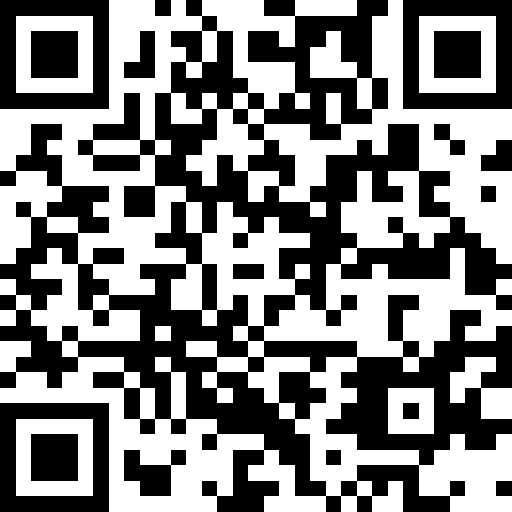
The expected text is:
https://enfect.com/qrdecoderIn our Chromium test on Windows on October 12, 2026, the decoder returned that exact text without requesting the encoded address before an explicit action. The Gallery and Lens steps come from the linked official documentation; we did not test them on physical iPhone or Galaxy devices.

If this file works but yours does not, check the source image next.
When the result is missing or unexpected
| What happens | What to try next |
|---|---|
| The code is not detected | Use the original image, capture it at a readable size, and keep all corners and the white border |
| Image search returns similar pictures | Crop to the QR area, or switch to the saved-image decoder |
| A PDF cannot be selected | Capture the QR as PNG or JPG first |
| The URL input cannot read an image | Save the image and use Upload; the address may point to a webpage or the host may block cross-origin access |
| Decoding produces Wi-Fi settings or other text | The code may not contain a website link; choose the appropriate tool or app for that content |
| Decoding succeeds, but the destination fails | Investigate the link or the issuing service; improving the screenshot will not repair its destination |
A decoded address still needs checking before you trust it. For the next steps, see how to read a QR code without opening its link.
For a login, payment or ticket code, follow the issuer's instructions. Some codes need a particular app or expire with a session; decoding them will not create a permanent public link.